PKNIC (Pakistan Network Information Center) manages all .pk domains. If you want to point your .pk domain to a new hosting provider or listing your domain name for sale on pkdomains.com, you need to update its nameservers. This can be done easily through the PKNIC Member Panel.
Follow the steps below:
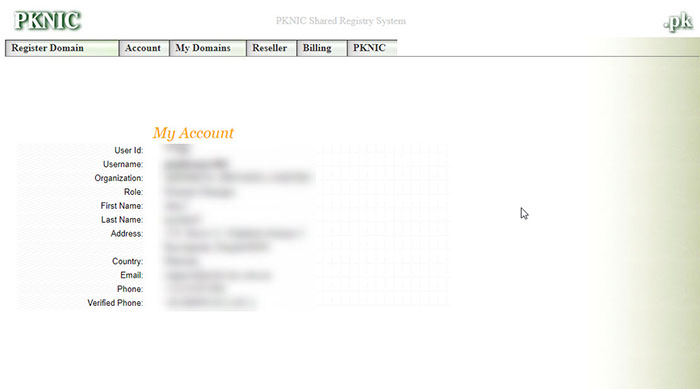
Step 1: Log in to the PKNIC Member Panel
Go to the PKNIC Member Panel and log in with your username and password.
You should have received these log in details when your .pk domain was registered.
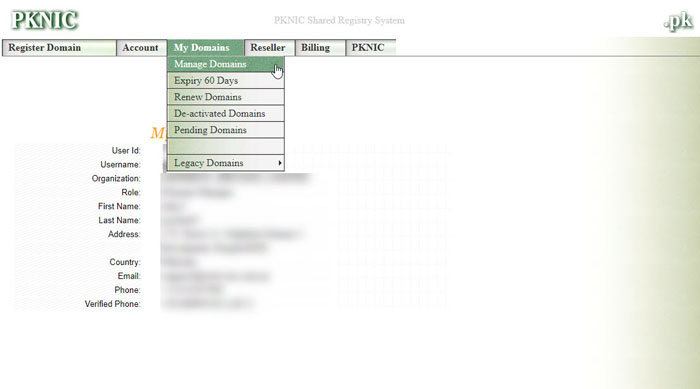
Step 2: Go to Domain Management
After logging in, find the Domain Management section.
This is where you can manage settings like nameservers, contact details, and DNS records.
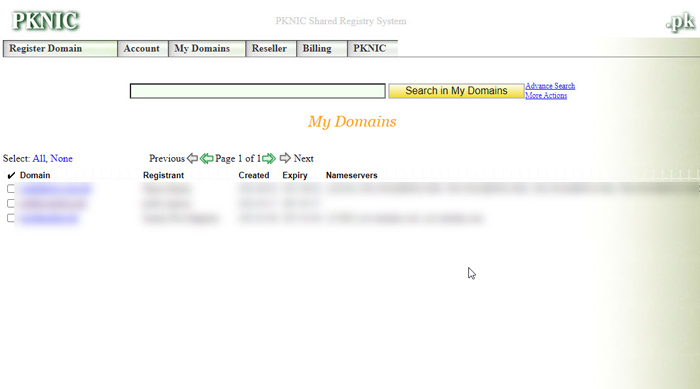
Step 3: Select Your Domain
From the list of domains, click on the .pk domain you want to update.
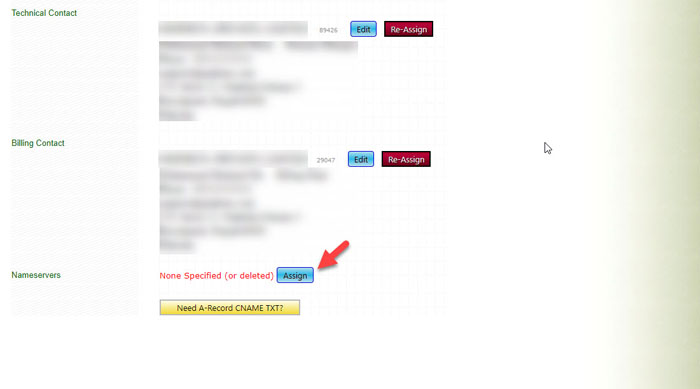
Step 4: Open Nameserver Settings
Look for the Nameserver or DNS settings option inside the domain settings and open it.
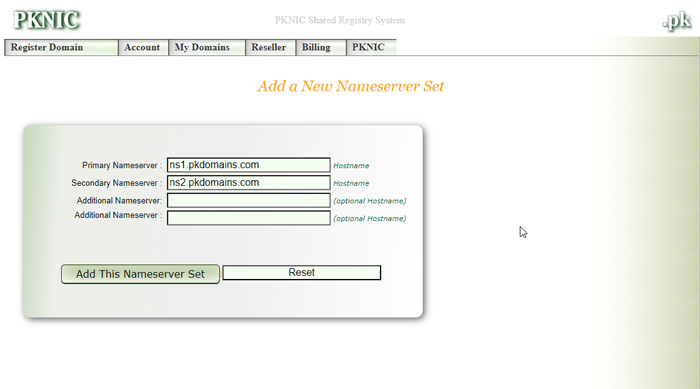
Step 5: Enter New Nameservers
Enter the new nameserver details provided by your hosting company or pkdomains.com.
This is usually in the format:
-
ns1.pkdomains.com
-
ns2.pkdomains.com
Make sure the details are correct.
Step 6: Save the Changes
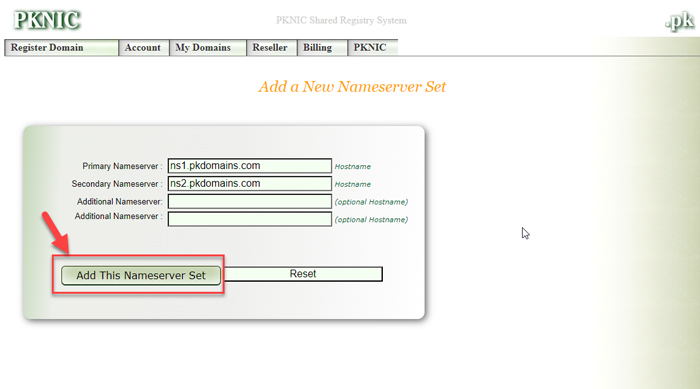
After entering the new nameservers, save the changes.
You may be asked to confirm before the update is applied.
Step 7: Check the Update
Nameserver changes can take a few hours to fully update.
You can check the status using tools like DNS Checker or What’s My DNS to confirm the update.
Final Notes
Changing nameservers allows you to connect your .pk domain to a new website, email service, or hosting provider. By following these steps, you can easily manage where your domain points and keep your online services running smoothly.